
HUAWEI
Control your smart thermostat from your wrist
Lead the design of a smartwatch experience for one of Europe's leading smart thermostat companies, utilizing the new Huawei OS. Ensured adherence to HarmonyOS design principles while maintaining the brand's identity for a seamless user experience. The app is now available on the Huawei App Gallery.
Define
The first commercial HarmonyOS was released in June 2021, just few months before we started building this app. Being a brand new OS, I started with studying the design guide; it aims to help you offer consistent, easy-to-use experience on HarmonyOS wearables and lite wearables, specifically, smart watches.
If you are interested to know more about it check the Harmony wearables design guide.
Returning to previous screen (HarmonyOS documentation)

System architecture (HarmonyOS documentation)
Brainstorm about functionalities
At first we brainstorm with the business and the core team to define which functionalities were needed on the watch from the mobile app.
Based on their research we decided to provide the users with shortcuts of the most used functionalities:
- Change house scenario: Home and Away
- Quick actions for all rooms: turn off the thermostat, boost heating and resume schedule
- Change room setpoint temperature
- Define a schedule and resume schedule

User flow
I created a high-level flow based on the use cases we defined during the brainstorming session. We decided to keep the login flow separate from the mobile app initially, meaning users will need to manually enter their email and password. While this isn't the ideal solution, it allows us to move forward without needing changes from the mobile app team, which will help improve our time to market.
Design
During the design phase, I focused primarily on three key aspects: navigation, the room screen, and the sliders UI. These elements are closely interconnected, with decisions made in one area impacting the other two. While I present them here in the order I approached them, I view them as part of an ongoing loop. Any change in one area triggers a full cycle to assess the impact on the others and make necessary adjustments.

Navigation
HarmonyOS offers two main types of app navigation: hierarchical and lateral.
We excluded horizontal and tile navigation from the lateral options due to issues with the back gesture and the way multiple rooms were represented in a single tile. We tested hierarchical navigation (similar to a list), assuming users would scroll through a list of rooms. However, most users only have 3 to 5 rooms, reducing the benefit, and each row could only show limited information, requiring users to tap for details.
Ultimately, users preferred vertical navigation, where each screen represents a single room, and users can swipe up or down to view the full content.
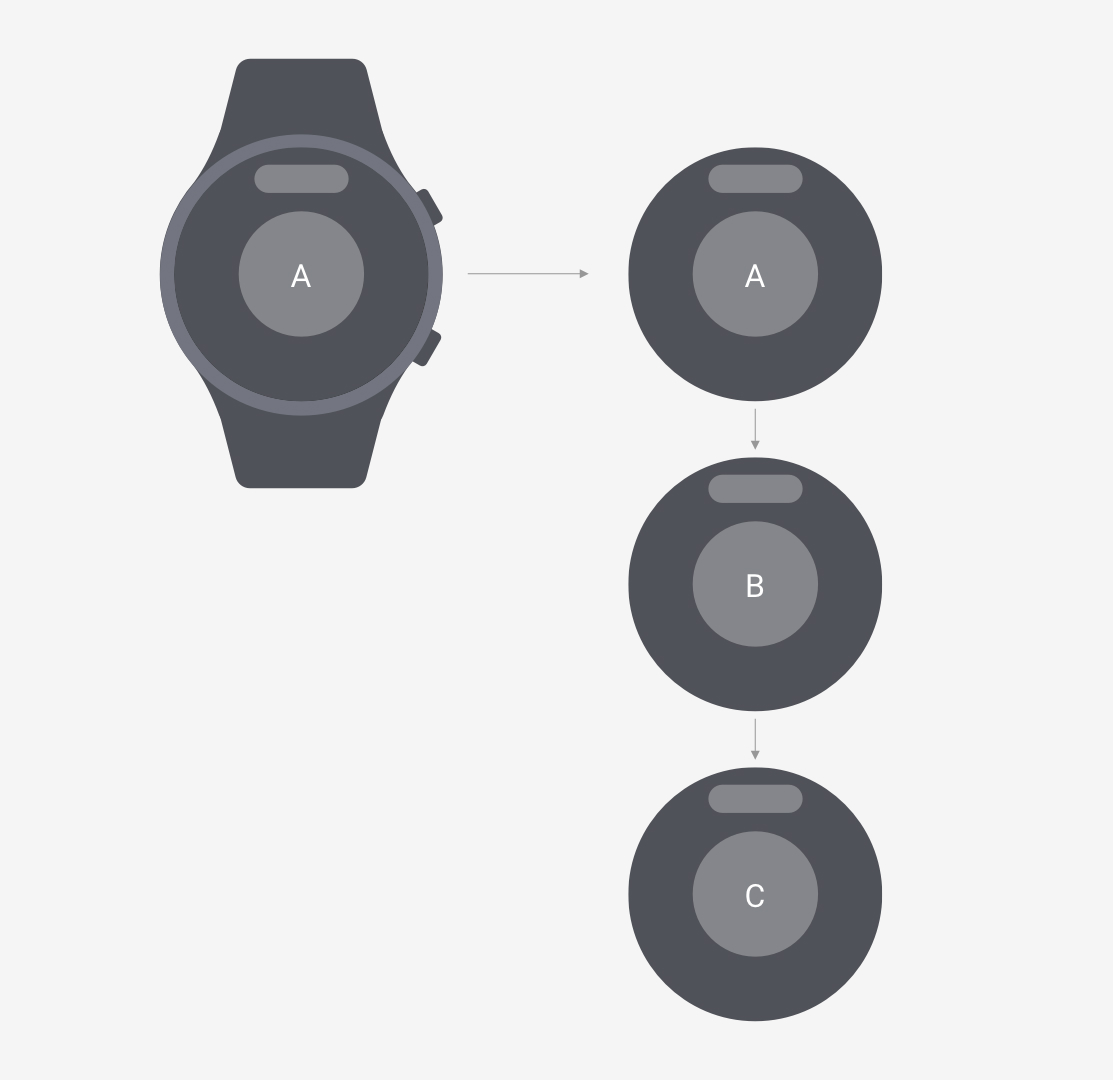
Vertical navigation
Room screen
Here the list of information we decided that a room screen has to show to the users:
- Room name
- Temperature inside the room
- Actual temperature set point of the room
- Humidity level
- Way to check the room schedule and reset it if necessary
I made different screens and tested them with users. Two were the main discoveries: users prefer to access to the set point temperature control via an extra step instead of having it directly accessible from the room screen and users prefer the button represented with an icon and the "Schedule" text, the use of only the icon has led to misleading results.
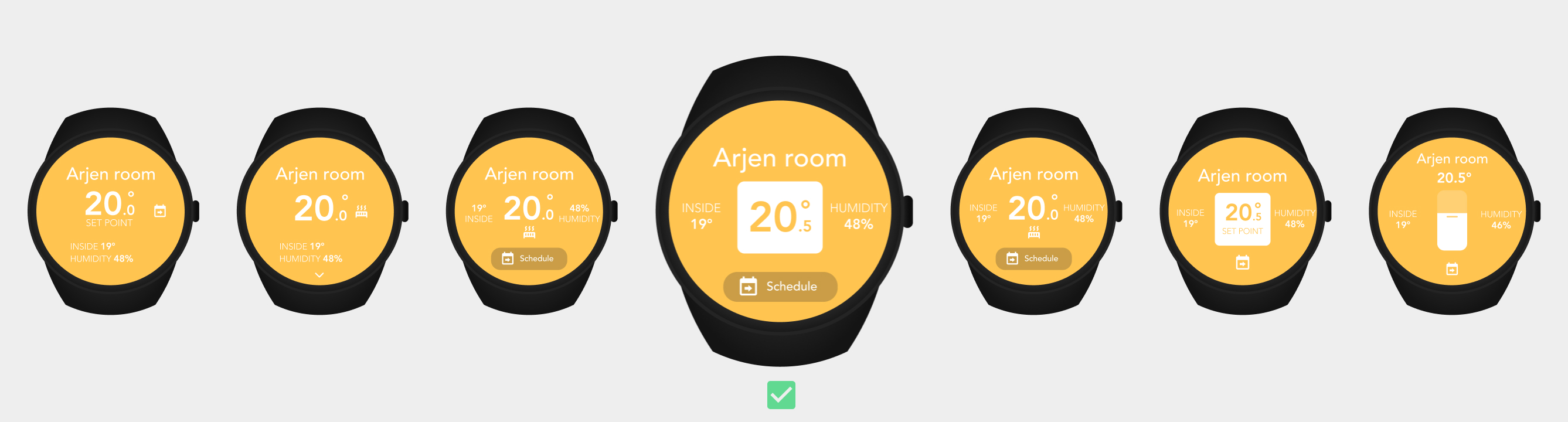
A selection of room screens for which the central one has been chosen
Sliders UI
How to control the room temperature? It felt natural to use a vertical slider, up to increase the degree and down to make it colder. At first the idea was to have it directly in the room screen, but as said before users prefer to have an extra step to change it. That worked perfectly for us because the room screen was already quite busy and the vertical gesture was overlapping with our first choice of rooms navigation.
A second slider for time was also needed: when you change manually the room temperature you can also define for how long do you want to keep that temperature before it goes back to the regular schedule. In this case it was designed horizontally taking inspiration from the time line, but HarmonyOS provides only one type of slider that is vertically. We decide to not go for a custom component for several reasons, instead we used a Progress bar.
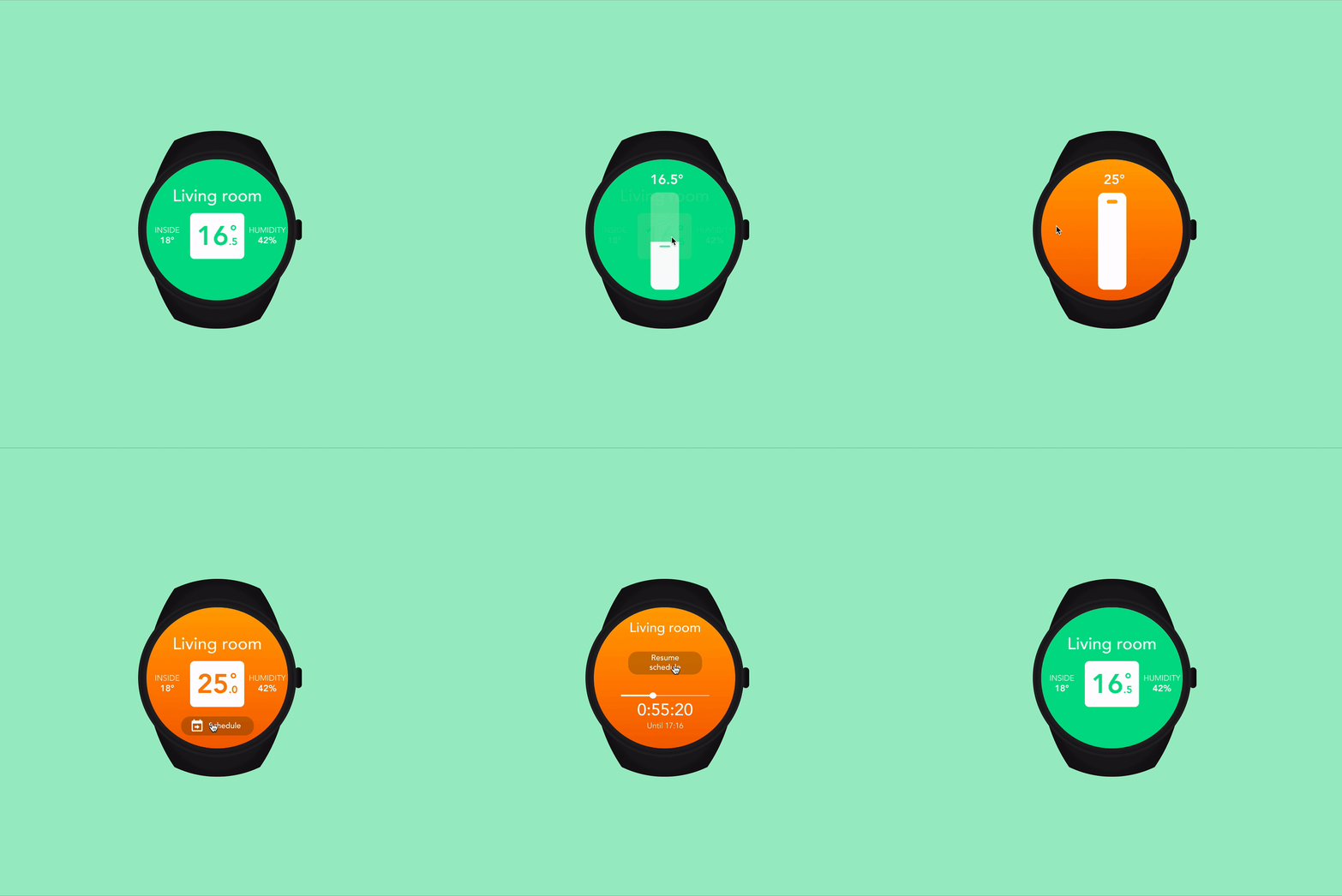
Prototype: how to control the room temperature and manually resume the schedule

Screenshot from the developed app: progress bar to set the timer before it goes back to the regular schedule
Prototype and developing
After some iterations, I finalized the design and presented the prototype to the team. I kept working in close contact with the engineers during the whole development process and performing on field tests, to check the correct functioning of the app features and the usability.
The app has been published by the client on the Huawei AppGallery.
Final prototype ready for development
App developed and testing it on field